Managing the community board
Appoint the president, vice-president and board members, and review the history of appointments.
The community board holds the offices elected by the community. Beyond recording who holds each post, it also determines what each person can do inside the application: board members see the financial information and can act on incidents, meetings and minutes.
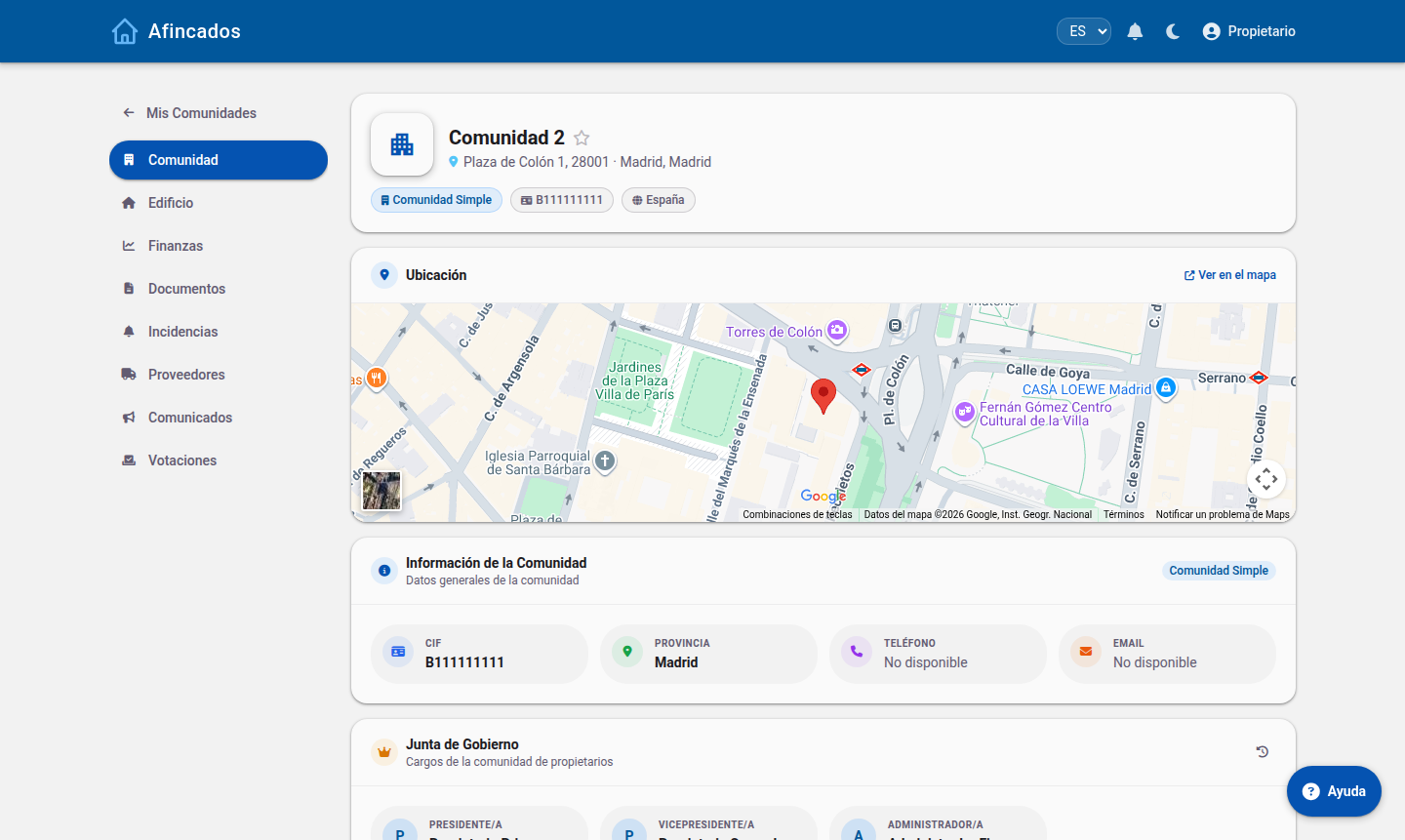
Available offices
- President: represents the community, calls the meetings and signs the minutes.
- Vice-president: stands in for the president when absent.
- Board member: supports the board and helps follow up on agreements.
- Administrator: the property manager, with full access to the management features.
Appointing or changing an office
- Open the community and go to the Board tab.
- Click Edit board.
- Pick the office and, in the search box, the person who will hold it. Only users already registered in the community appear.
- Enter the start date of the term, which normally matches the meeting where the appointment was approved.
- Save.
When you assign an office, that person automatically receives the matching permissions: there is no need to change their role by hand.
Annual renewal
When the community renews its board, do not delete the previous holders: assign the new office with its start date and the application will close the previous term and store it in the history. That keeps a clear record of who was president at any given time, which is especially useful when reviewing old minutes.
Reviewing the history
From Board history you can see every office the community has had, along with its term. This is where you check who signed a particular set of minutes or who chaired the community in a past financial year.
Deleting an office
The Delete option should only be used when an appointment was entered by mistake, because it removes the record from the history. For a normal handover, appoint the successor rather than deleting the previous office.