Messages, notifications, noticeboard and the community document archive.
1.1 Community documents
Updated on
15/09/2026
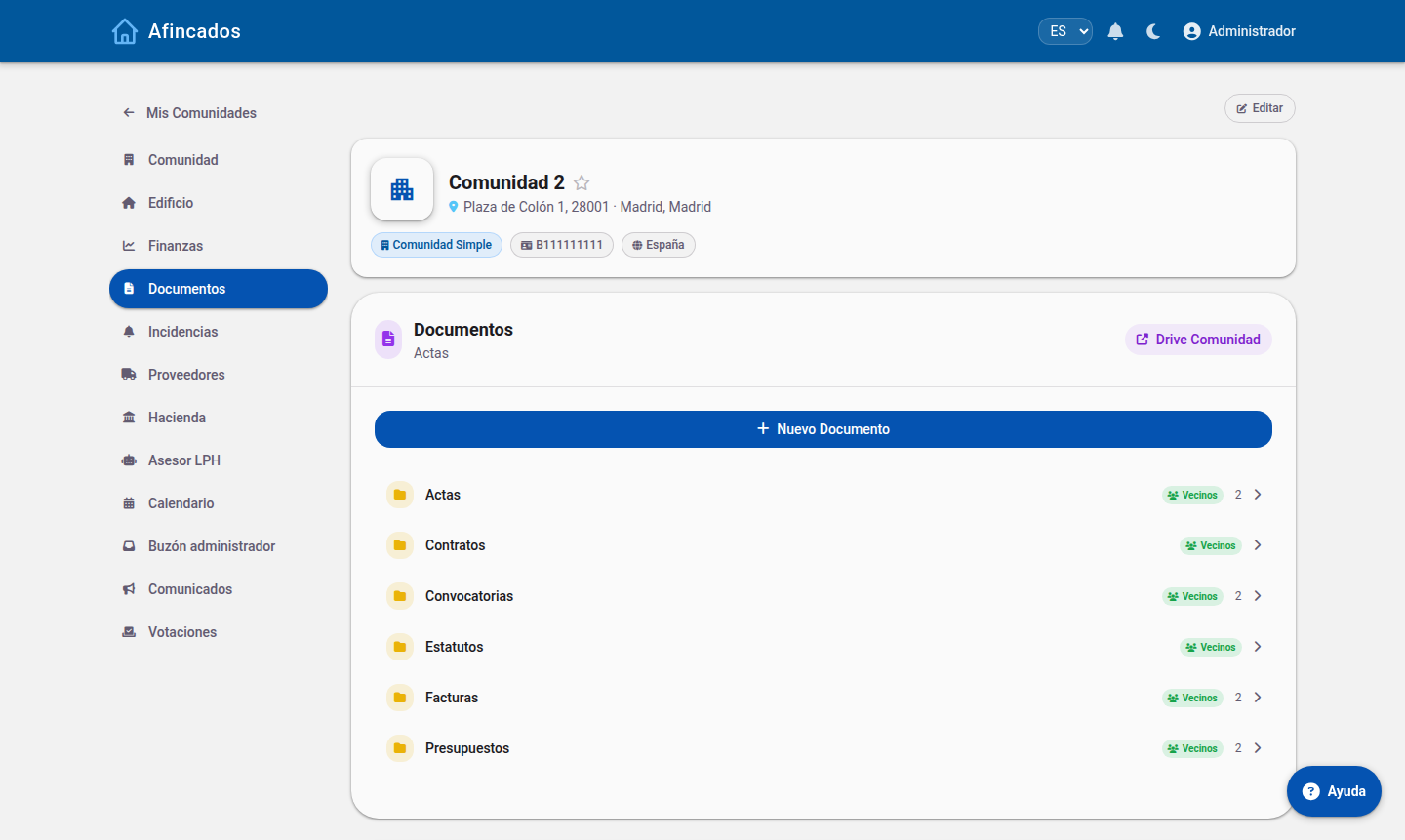
Browse minutes, budgets and contracts, and upload new documentation.
The Documents tab is the community archive: minutes, bylaws, budgets, supplier contracts, insurance policies and any other paperwork that should be available to residents.
The «Residents» badge marks the folders owners can see.
Browsing and downloading
Every user in the community can see the document list and download from it. Each document shows its name, its date and who uploaded it. Use the search box to find a specific one by name.
The minutes of meetings are published here automatically as soon as they are signed, so this is where to look up the decisions taken at past meetings.
Uploading a document
Only the property manager and board members can add documents.
Open the community Documents tab.
Click Upload document.
Choose the file from your computer. PDFs, images and office documents are supported.
Give it a descriptive name: this is what residents will see and search for.
Save.
Residents receive a notification whenever a new document is published.
Deleting a document
You can delete a document from its menu. Bear in mind the action cannot be undone and the document will no longer be available to any resident, so think twice before removing a set of minutes or a contract still in force.
Recommendations
Use names that include the year: "Budget 2026" is far easier to find than "Budget".
Upload documents as PDF whenever you can: every resident will be able to open them without extra software.
Do not upload documents holding third-party personal data that should not be public within the community.
1.2 Messages and notifications
Updated on
15/09/2026
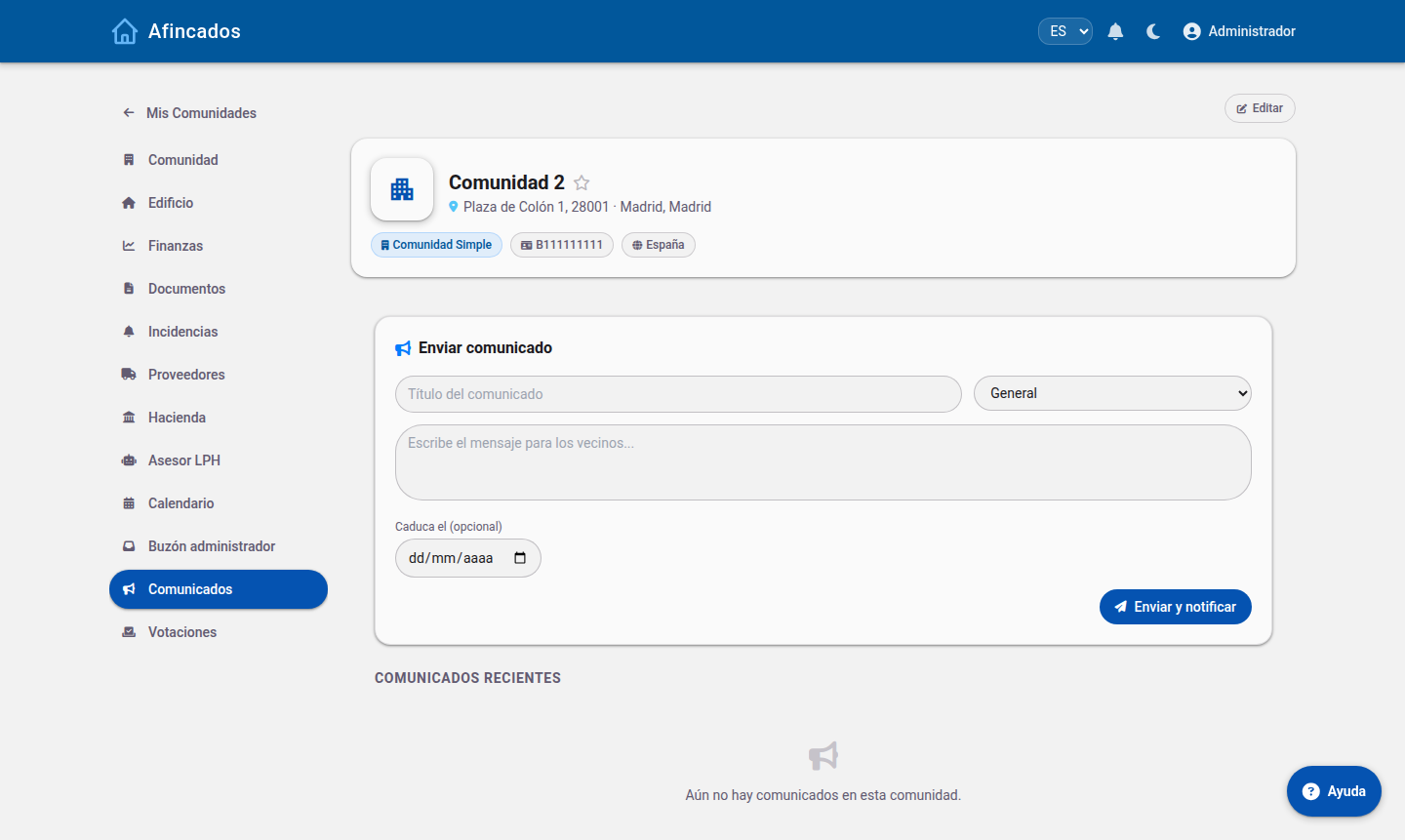
Write to your property manager or the board and keep up with your community alerts.
The application brings all communication with your community into one place, so nothing gets lost in email chains or messaging groups.
Announcements are pushed as notifications and can be marked urgent.
Messages
The community Messages tab works like an inbox of conversations. Each thread groups one topic together with its replies.
Writing a new message
Open your community and go to the Messages tab.
Click New message.
Choose the recipient: the property manager, the board or the whole community, depending on your permissions.
Write a clear subject and the body of the message.
Send it.
The recipient gets a notification and can reply in the same thread, which keeps the whole conversation tidy and easy to look up later.
Which channel to use
If it is a fault, do not send a message: create an incident instead. That way it is properly logged, a supplier can be assigned to it and you can follow its progress.
For questions about a fee, a meeting notice or a document, a message is the right channel.
Notifications
The bell icon in the top menu shows your pending alerts. You will be notified when:
A meeting notice is published or a set of minutes is signed.
New fees or an extraordinary levy are published.
The status of an incident you reported changes.
A new document is uploaded.
You receive a message.
Clicking an alert marks it as read and takes you straight to the content. Important alerts are also sent by email, so it is worth keeping your address up to date in My profile.