How the role system works: what each profile sees, how roles are assigned and which content is visible to whom.
1.1 Assigning and changing a user's profile
Updated on
15/09/2026
How to add a resident, appoint board officers and give a supplier's workers access to the app.
A user's profile is not picked from a standalone permission screen: it follows from what that person is in the community. A registered owner is a resident; if they also hold a board office, they get board permissions; and someone working for a supplier signs in as a worker. Each case is handled in a different place.
Who can do it
The property manager and the members of the board. Neither residents nor workers can change their own profile or anyone else's.
Adding a resident
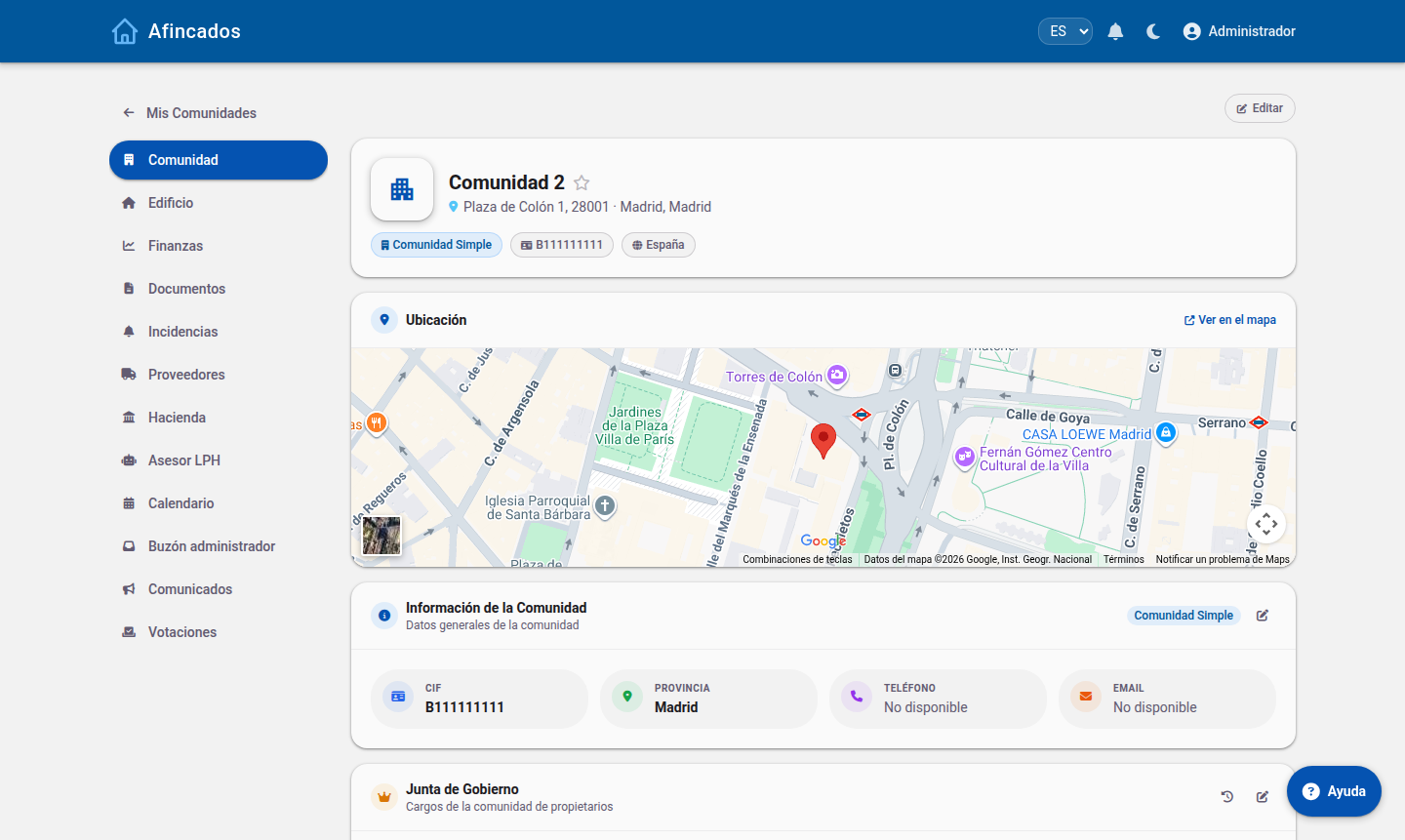
From the Community tab, in the users block. Registering an owner or tenant and linking them to their property gives that person access with the resident profile.
The community record holds the general data, the users and the board.
Double-check the email: access, meeting notices and urgent alerts all go there.
Appointing a president, vice-president or board member
Board permissions come with the office. In the same Community tab, the Board block lists the current officers and their history. Give a resident an office and they start managing the community with the board permissions described in the President and board guide.
It works the same way in reverse: when the term ends, the person becomes a resident again and the management actions disappear. The history keeps who held each office and when — what you need when the board is renewed after the annual meeting.
Giving a worker access
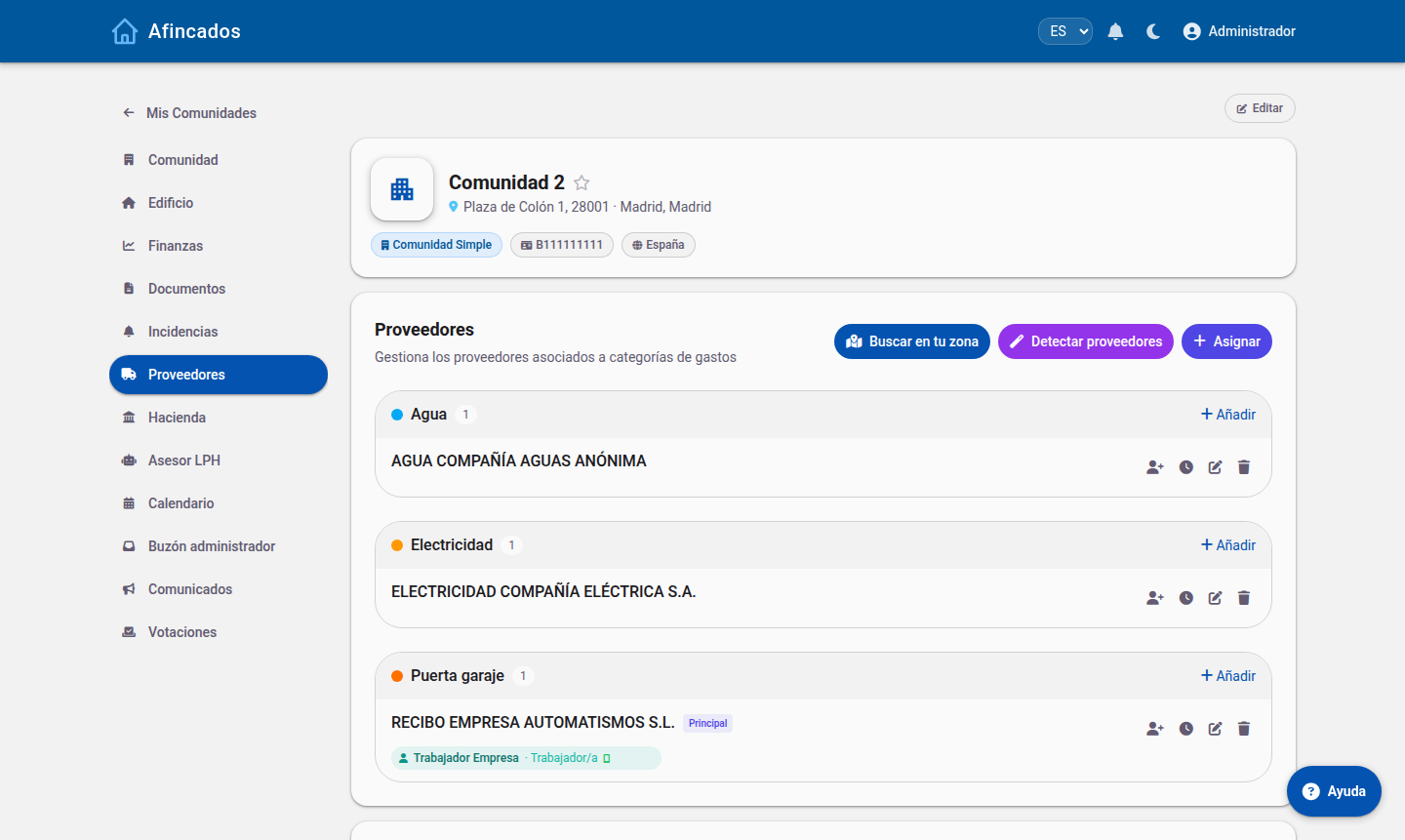
Workers are not added as residents: they hang off a supplier. In the Suppliers tab each supplier has its people, and those people sign in with the worker profile.
Each supplier lists its shifts and the people with app access.
Their access is limited to the community — or communities — the supplier serves.
Worth remembering
The profile is per community: changing it in one does not affect the others.
A profile change shows up in the user's menu: tabs appear or disappear the next time they sign in.
To cut off access for someone who is no longer an owner, remove them as a community user; removing the office is not enough.
1.2 How profiles and permissions work
Updated on
15/09/2026
The four Afincados profiles, what determines each user's view and why the menu changes from one person to another.
In Afincados, what you see depends on your profile. There is no permission screen to configure option by option: each user has a profile within a community, and that profile decides which tabs appear in the menu and which buttons you can press.
The four profiles
Property manager: the role with the most permissions. The only one that creates new communities and the only one that reaches Tax, LPH Advisor, Calendar and Manager inbox.
President and board: president, vice-president and board members. They manage almost the whole community — residents, fees, incidents, meetings, documents — but not the tax area or the manager's internal tools.
Resident: owners and tenants. They consult their community's information and take part: report incidents, vote and book facilities. They do not manage.
Worker: staff serving the community on behalf of a supplier (cleaning, maintenance, lifts…). A reduced view focused on their daily work: clocking in, their assigned incidents and their supplier's schedule.
The profile belongs to the community, not to the person
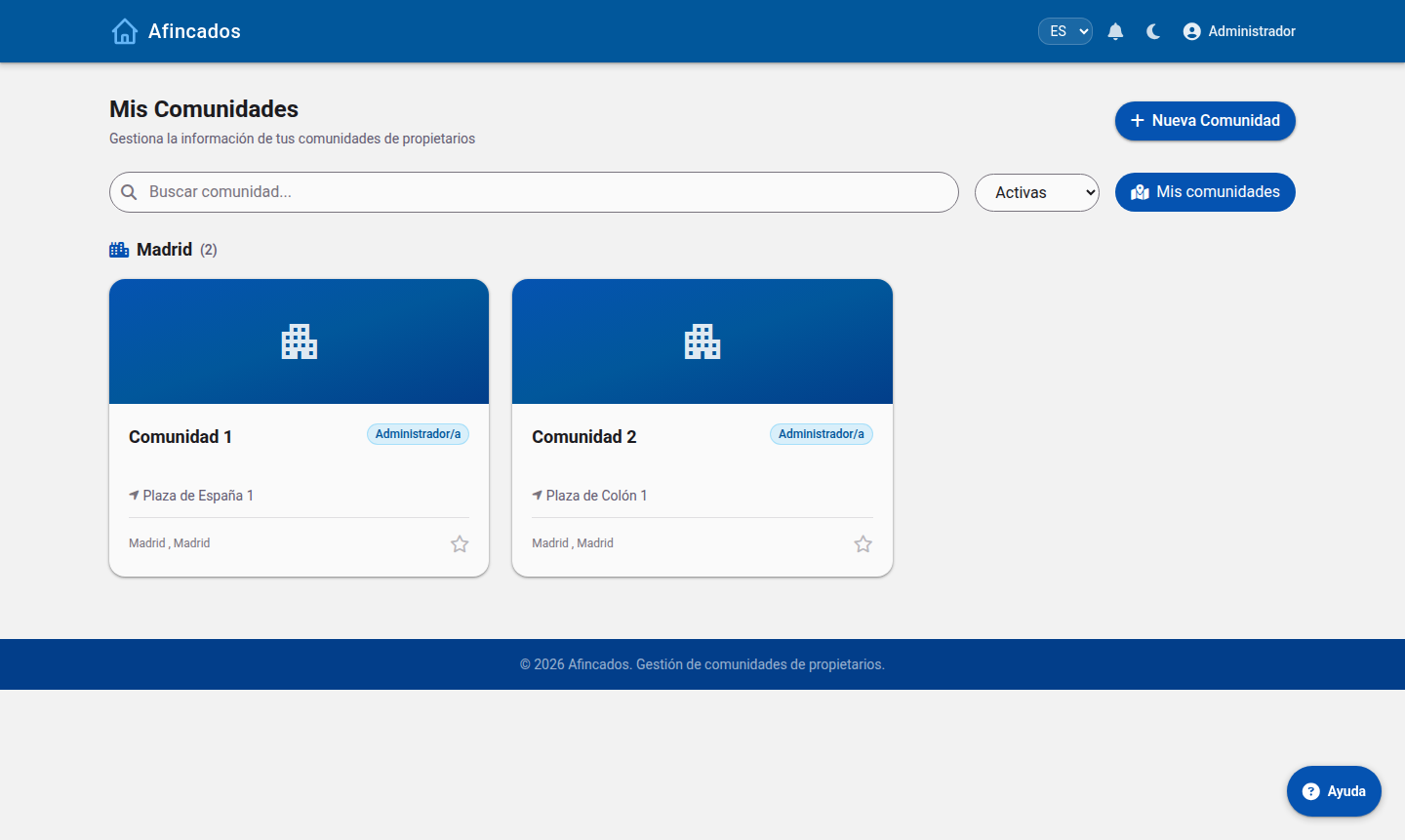
The same person can hold different profiles in different communities: you may be president where you live and a resident in your holiday flat. That is why each card in My Communities shows your role in that particular community.
Each card shows the profile you enter that community with.
When you open a community, the app loads the menu matching your profile in it. Switch to a community where you have another role and the menu changes with you.
Why a tab is missing
No Tax, LPH Advisor, Calendar or Inbox: those belong to the property manager only.
I cannot create a community: only the property manager can.
I see Finances but no buttons: residents get a read-only view.
I only see three sections: you are signing in as a supplier's worker.
The full walkthrough of every profile in the Role guides.
1.3 What each profile sees: comparison table
Updated on
15/09/2026
Side-by-side comparison of menu tabs and main actions for property manager, board, resident and worker.
Two tables summarise the whole system: which tabs each profile gets, and which actions each one can perform.
Menu tabs
Tab
Property manager
President / Board
Resident
Worker
Community
Yes
Yes
Yes
No
Building
Yes
Yes
Yes
No
Finances
Yes
Yes
Yes (read-only)
No
Documents
Yes
Yes
Yes (shared folders)
No
Incidents
Yes
Yes
Yes
Yes (only theirs)
Suppliers
Yes
Yes
Yes
Yes (own company)
Passes
Yes
Yes
Yes
No
Announcements
Yes
Yes
Yes (receives them)
No
Votes
Yes
Yes
Yes (votes)
No
My shift
No
No
No
Yes
Tax
Yes
No
No
No
LPH Advisor
Yes
No
No
No
Calendar
Yes
No
No
No
Manager inbox
Yes
No
No
No
Actions
Action
Property manager
President / Board
Resident
Worker
Create communities
Yes
No
No
No
Add users and properties
Yes
Yes
No
No
Edit ownership shares and land registry
Yes
Yes
No
No
Create fees, levies and direct debits
Yes
Yes
No
No
View accounts and transactions
Yes
Yes
Yes (read-only)
No
Report an incident
Yes
Yes
Yes
Yes
Assign and close incidents
Yes
Yes
No
No
Call meetings and publish minutes
Yes
Yes
No
No
Upload documents and set their visibility
Yes
Yes
No
No
Send announcements
Yes
Yes
No
No
Open votes
Yes
Yes
No
No
Vote
Yes
Yes
Yes
No
Staff, payslips and tax forms
Yes
No
No
No
Clock in and out
No
No
No
Yes
The key difference
Between manager and board, the line is the tax area and the internal tools: Tax, LPH Advisor, Calendar, Inbox and creating communities. Everywhere else the board manages just like the manager.
Between board and resident, the line is managing versus consulting and taking part: residents see nearly the same screens, without the management actions.
The worker sits outside that scale: not a reduced resident but a different view — shift, assigned incidents, own supplier — with no access to finances, documents or other residents' data.
1.4 Who sees each document and content
Updated on
15/09/2026
Folders shared with residents, read-only finances, assigned incidents and announcements: what each profile reaches.
Beyond the tabs each profile gets, some content is shared selectively. These are the four cases where visibility is decided content by content, not just by profile.
Documents: shared folders
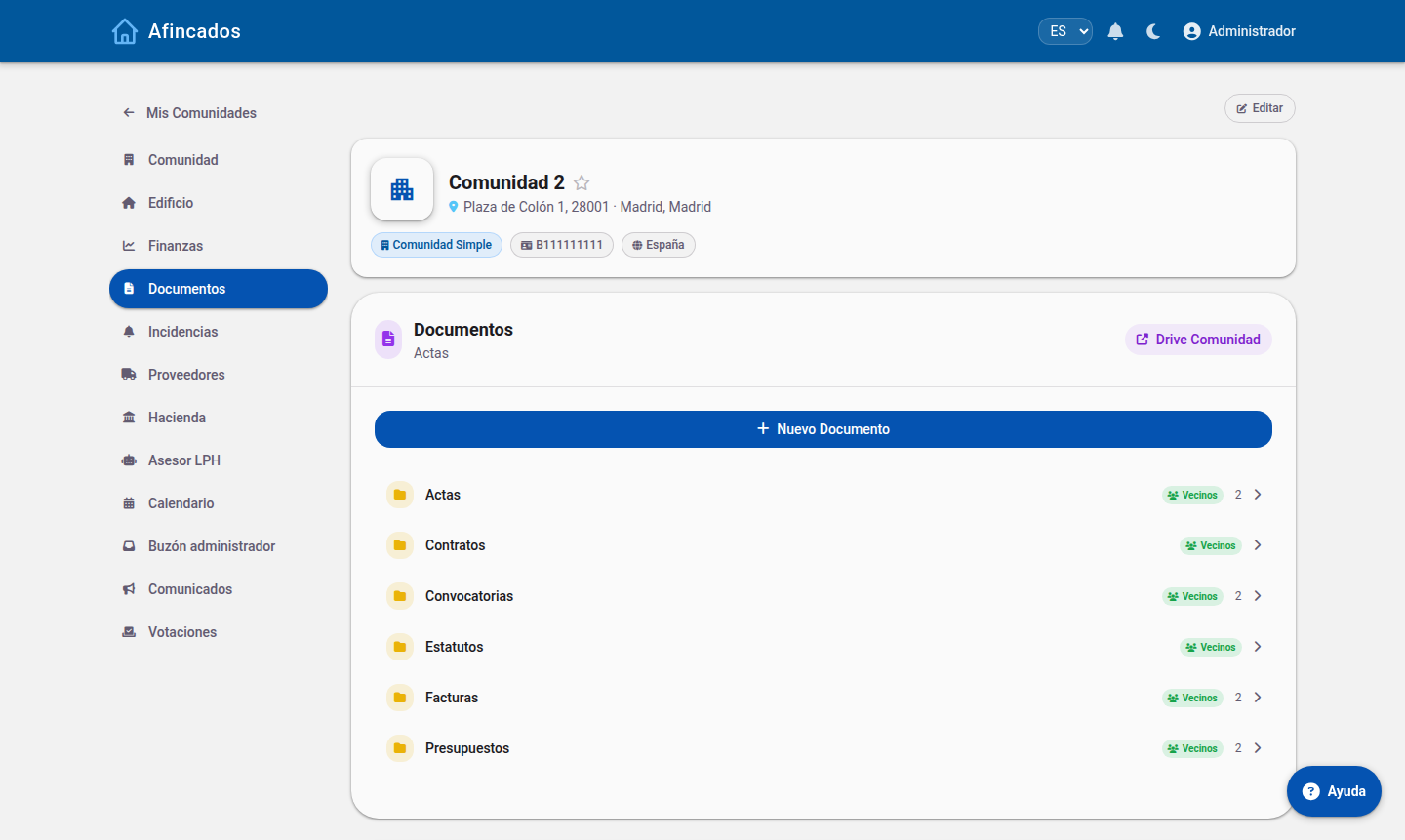
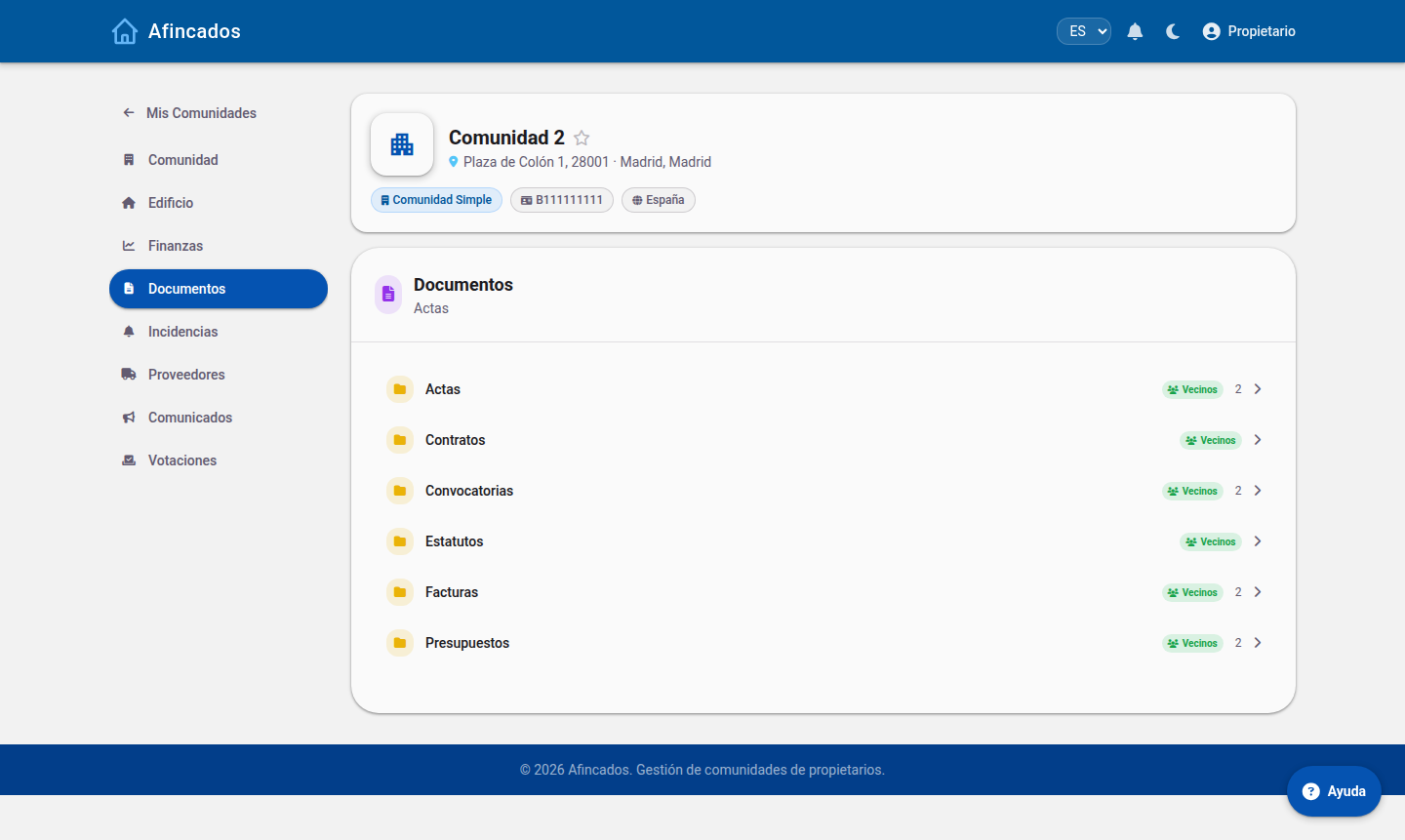
The most important case, because you decide. Community folders (minutes, contracts, notices, bylaws, invoices, budgets) are either marked visible to residents or kept for management only. In the list, the Residents label marks the shared ones.
Manager view: the «Residents» label marks the shared folders.
Residents only see the shared ones — the rest simply do not appear in their Documents tab.
The same community seen by a resident: shared folders only.
This is the natural way to separate what the community should know (minutes, budgets, notices) from internal management work. Check the label before uploading a sensitive document.
Finances: visible, but read-only
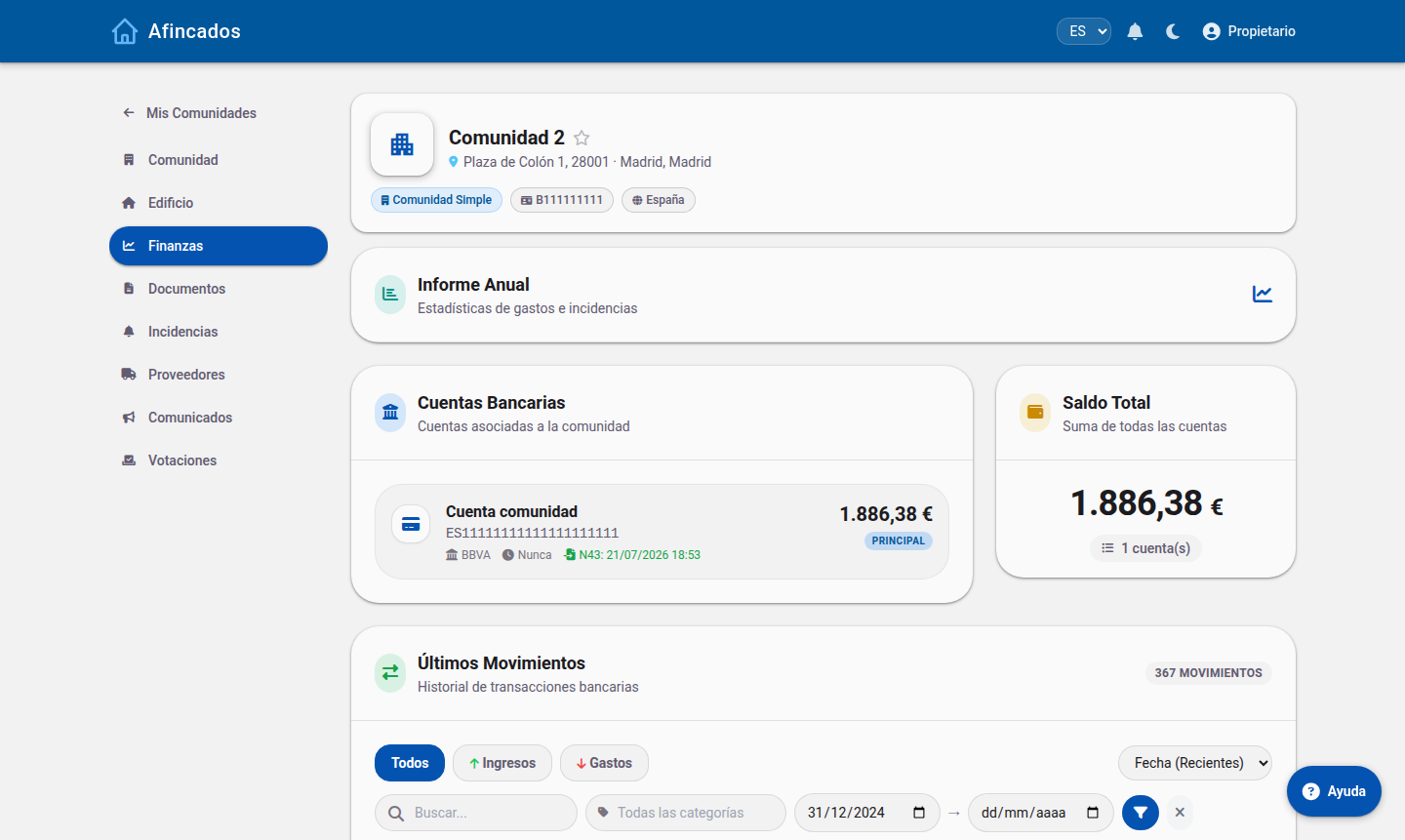
Accounts, balance and transactions are not hidden from residents: financial transparency is part of how a community runs. What changes is that residents have no management actions — creating fees, direct debits or transactions — only the view.
Residents see balances and transactions; the management buttons are absent.
The exception is the worker, who has no access to Finances at all.
Incidents: each role sees its own scope
Manager and board: every incident in the community, filtered by status and assignee.
Resident: can report incidents and follow their status.
Worker:only the ones assigned to them. They do not see the community's other incidents.
Announcements and votes: they reach every resident
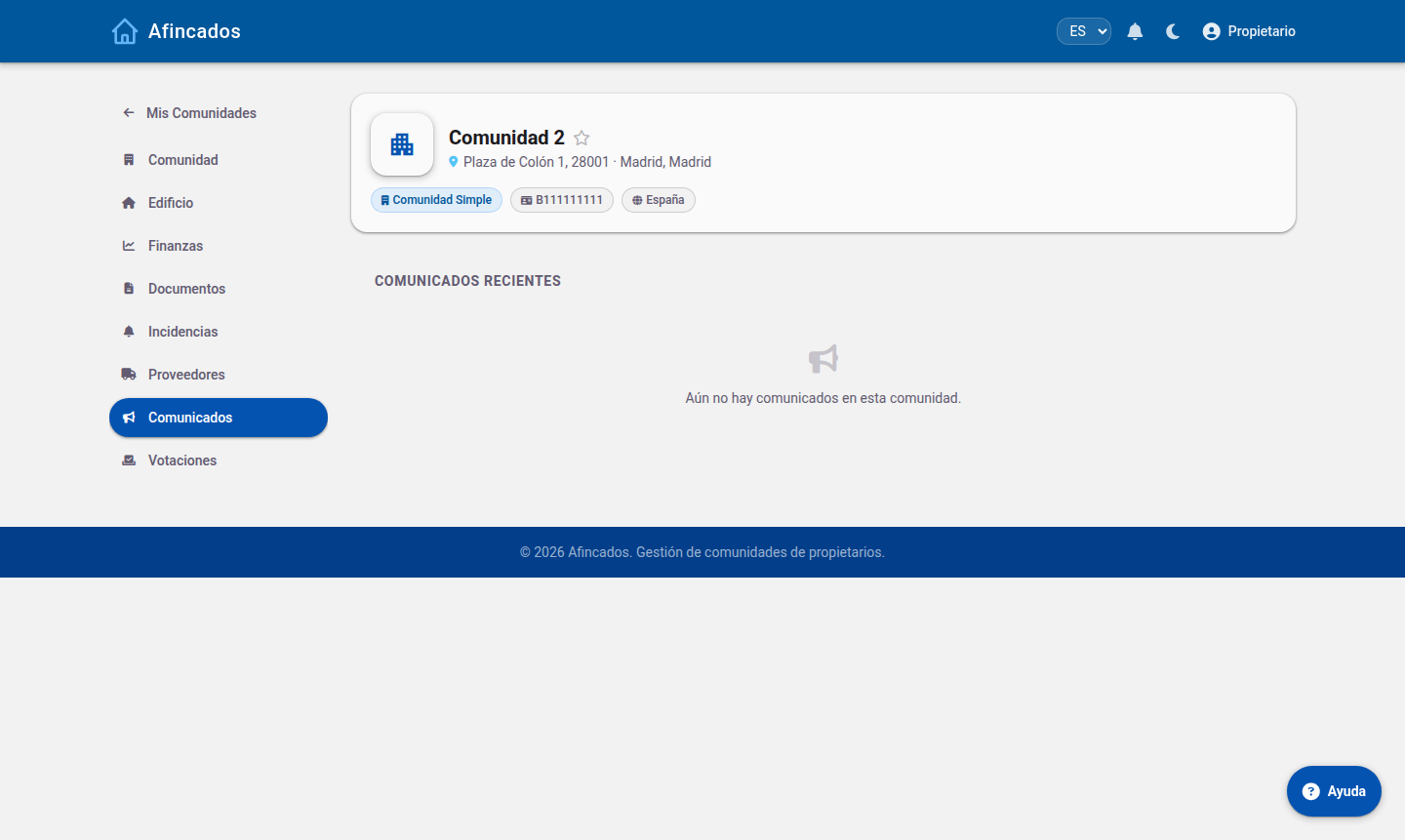
Announcements are sent by the manager and the board and reach all residents, highlighted when urgent. Votes work the same way: management opens them and owners take part. There is no selective sending to a subset of residents.
Announcement history in the resident's view.
And personal data
The worker has no access to other residents' data: their view is limited to their shift, their incidents and their supplier. Every user manages their own data — phone, email, avatar and password — from My profile.