Assigning and changing a user's profile
How to add a resident, appoint board officers and give a supplier's workers access to the app.
A user's profile is not picked from a standalone permission screen: it follows from what that person is in the community. A registered owner is a resident; if they also hold a board office, they get board permissions; and someone working for a supplier signs in as a worker. Each case is handled in a different place.
Who can do it
The property manager and the members of the board. Neither residents nor workers can change their own profile or anyone else's.
Adding a resident
From the Community tab, in the users block. Registering an owner or tenant and linking them to their property gives that person access with the resident profile.
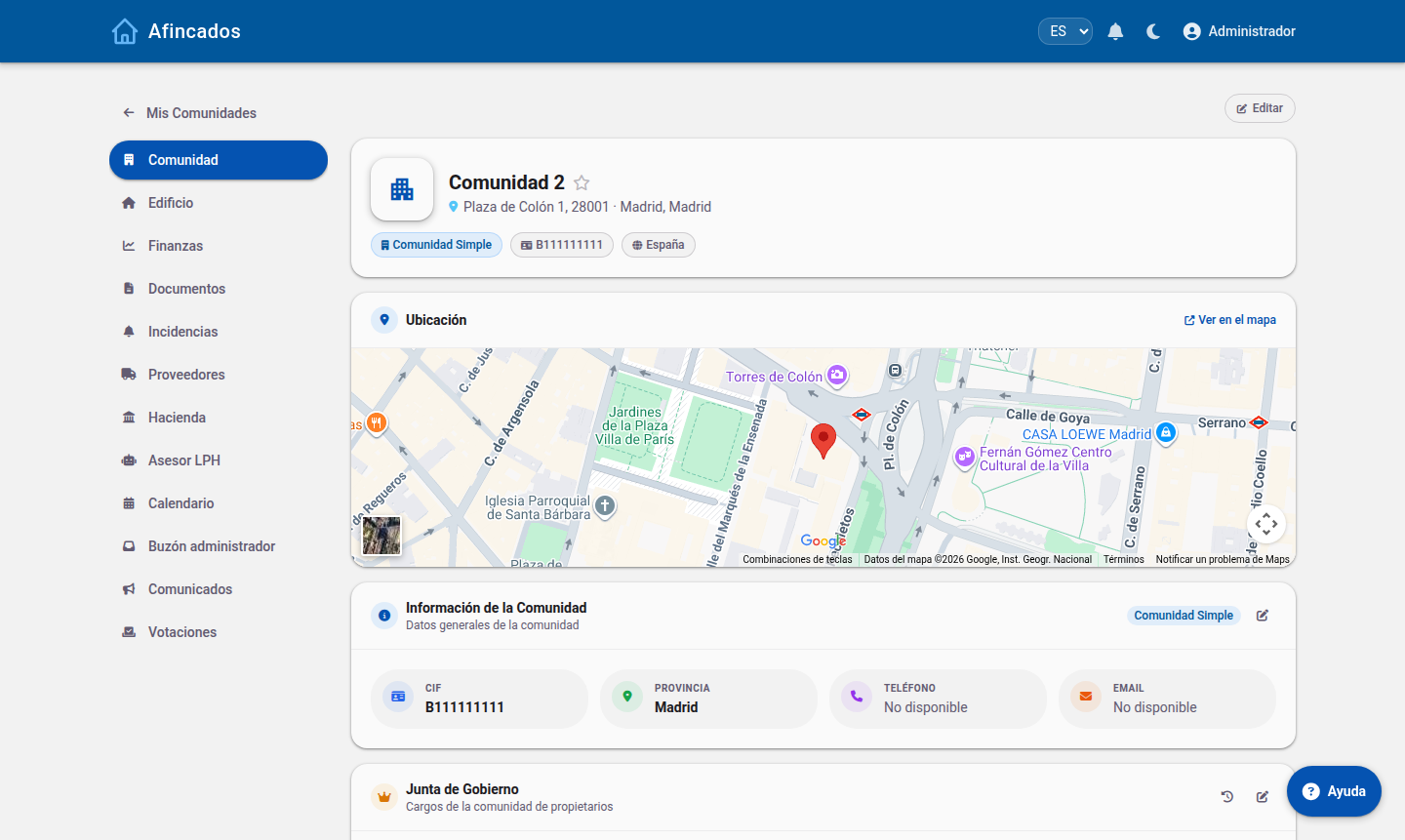
Double-check the email: access, meeting notices and urgent alerts all go there.
Appointing a president, vice-president or board member
Board permissions come with the office. In the same Community tab, the Board block lists the current officers and their history. Give a resident an office and they start managing the community with the board permissions described in the President and board guide.
It works the same way in reverse: when the term ends, the person becomes a resident again and the management actions disappear. The history keeps who held each office and when — what you need when the board is renewed after the annual meeting.
Giving a worker access
Workers are not added as residents: they hang off a supplier. In the Suppliers tab each supplier has its people, and those people sign in with the worker profile.
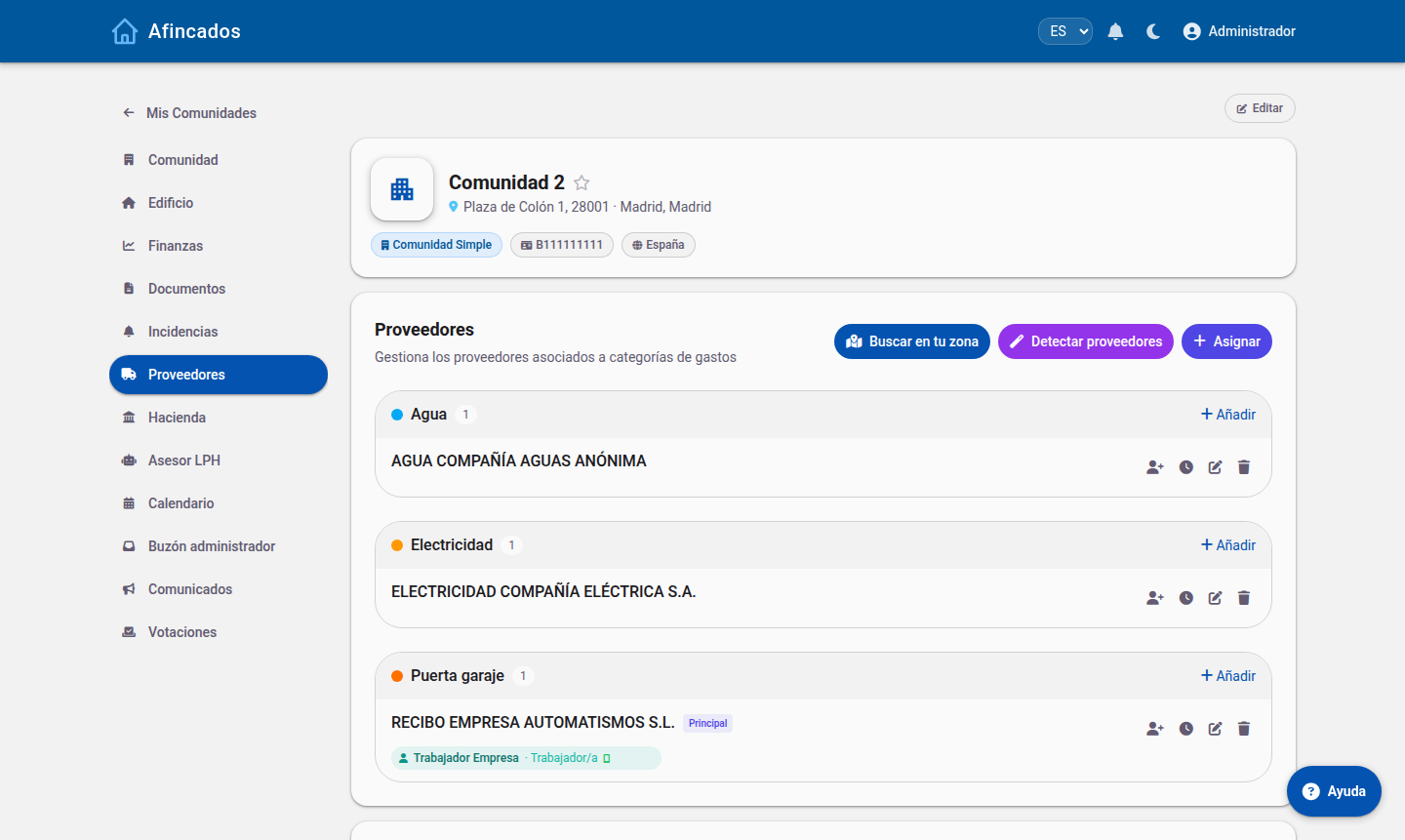
Their access is limited to the community — or communities — the supplier serves.
Worth remembering
- The profile is per community: changing it in one does not affect the others.
- A profile change shows up in the user's menu: tabs appear or disappear the next time they sign in.
- To cut off access for someone who is no longer an owner, remove them as a community user; removing the office is not enough.