Adding facilities, time slots and validating passes
Set up which areas can be booked, define their timetable and control access.
Before residents can book anything, the facilities have to be created and their time slots defined. This is done by the property manager and the board members.
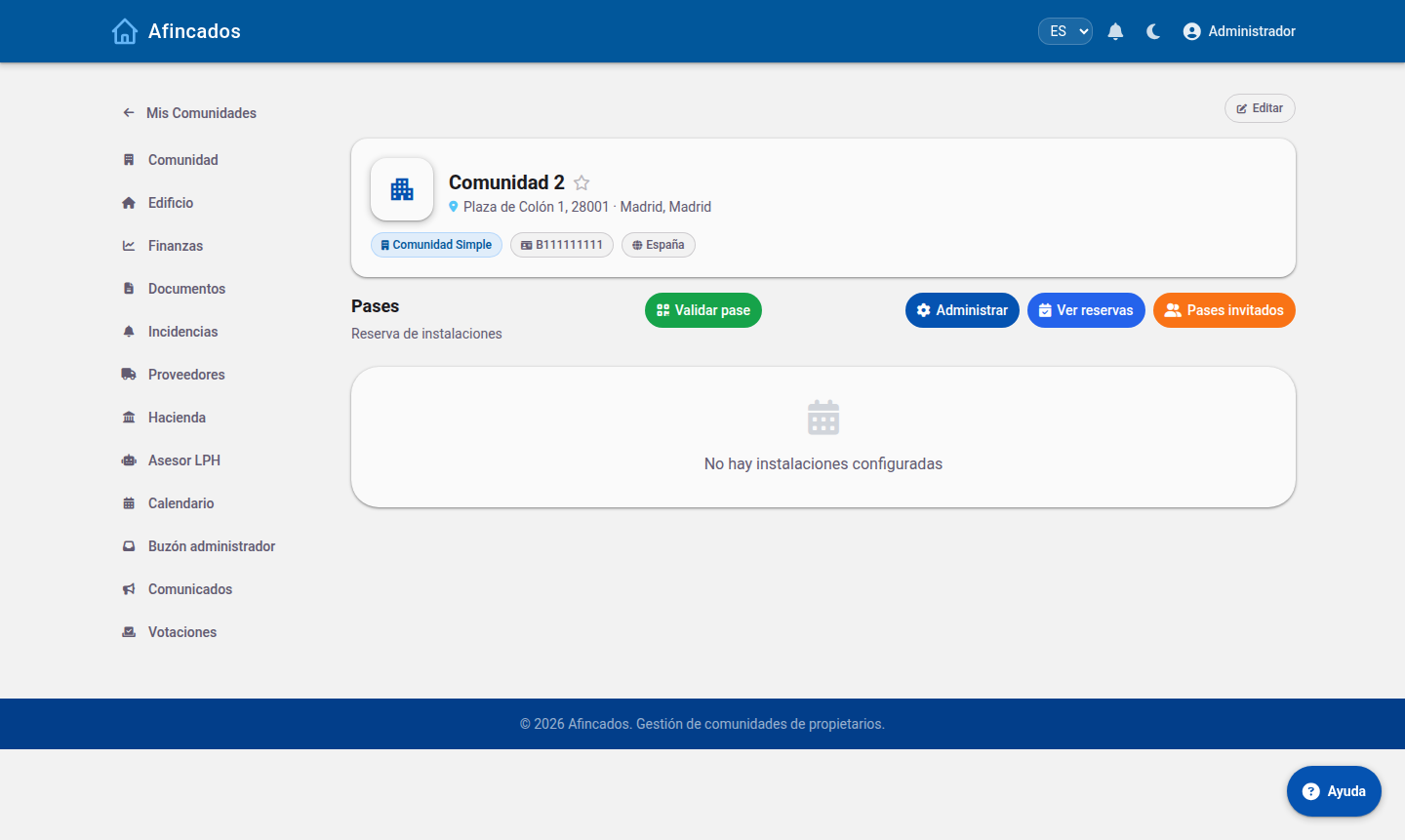
Adding a facility
- Open the community and go to the Passes tab.
- Click Manage and then New facility.
- Enter its name ("Padel court", "Function room", "Pool").
- Define the usage rules: how many simultaneous bookings a resident can hold, how far in advance they can book and whether guests are allowed.
- Save.
Defining the time slots
A facility with no time slots cannot be booked. Slots are the time bands the day is divided into.
- Open the facility and click New slot.
- Enter the start time and the end time (for example, 10:00 to 11:30).
- Tick the days of the week the slot is available on.
- Save and repeat for the remaining bands.
To delete a slot, click it and choose Delete. Be careful if bookings have already been made on it: let the affected residents know first.
Enabling or disabling a facility
When an area cannot be used for a while (the pool in winter, a court under repair), do not delete it: use the Enable / Disable toggle. The facility stops accepting new bookings but keeps its settings and its history, and you can switch it back on when it is available again.
Seeing and managing bookings
From Bookings you see every booking in the community, with who booked, which facility and when. You can cancel a booking if you need to, for example if the area has to close because of a fault; the resident is notified.
Validating passes
The Validate option opens the QR code reader. Use it at the entrance to check that a booking or a guest pass is valid.
- Click Validate.
- Scan the QR code shown by the resident or their guest.
- The application confirms whether the pass is valid for that day and that facility, or whether it has expired or already been used.
This is the tool used by the caretaker or whoever handles access control.