How profiles and permissions work
The four Afincados profiles, what determines each user's view and why the menu changes from one person to another.
In Afincados, what you see depends on your profile. There is no permission screen to configure option by option: each user has a profile within a community, and that profile decides which tabs appear in the menu and which buttons you can press.
The four profiles
- Property manager: the role with the most permissions. The only one that creates new communities and the only one that reaches Tax, LPH Advisor, Calendar and Manager inbox.
- President and board: president, vice-president and board members. They manage almost the whole community — residents, fees, incidents, meetings, documents — but not the tax area or the manager's internal tools.
- Resident: owners and tenants. They consult their community's information and take part: report incidents, vote and book facilities. They do not manage.
- Worker: staff serving the community on behalf of a supplier (cleaning, maintenance, lifts…). A reduced view focused on their daily work: clocking in, their assigned incidents and their supplier's schedule.
The profile belongs to the community, not to the person
The same person can hold different profiles in different communities: you may be president where you live and a resident in your holiday flat. That is why each card in My Communities shows your role in that particular community.
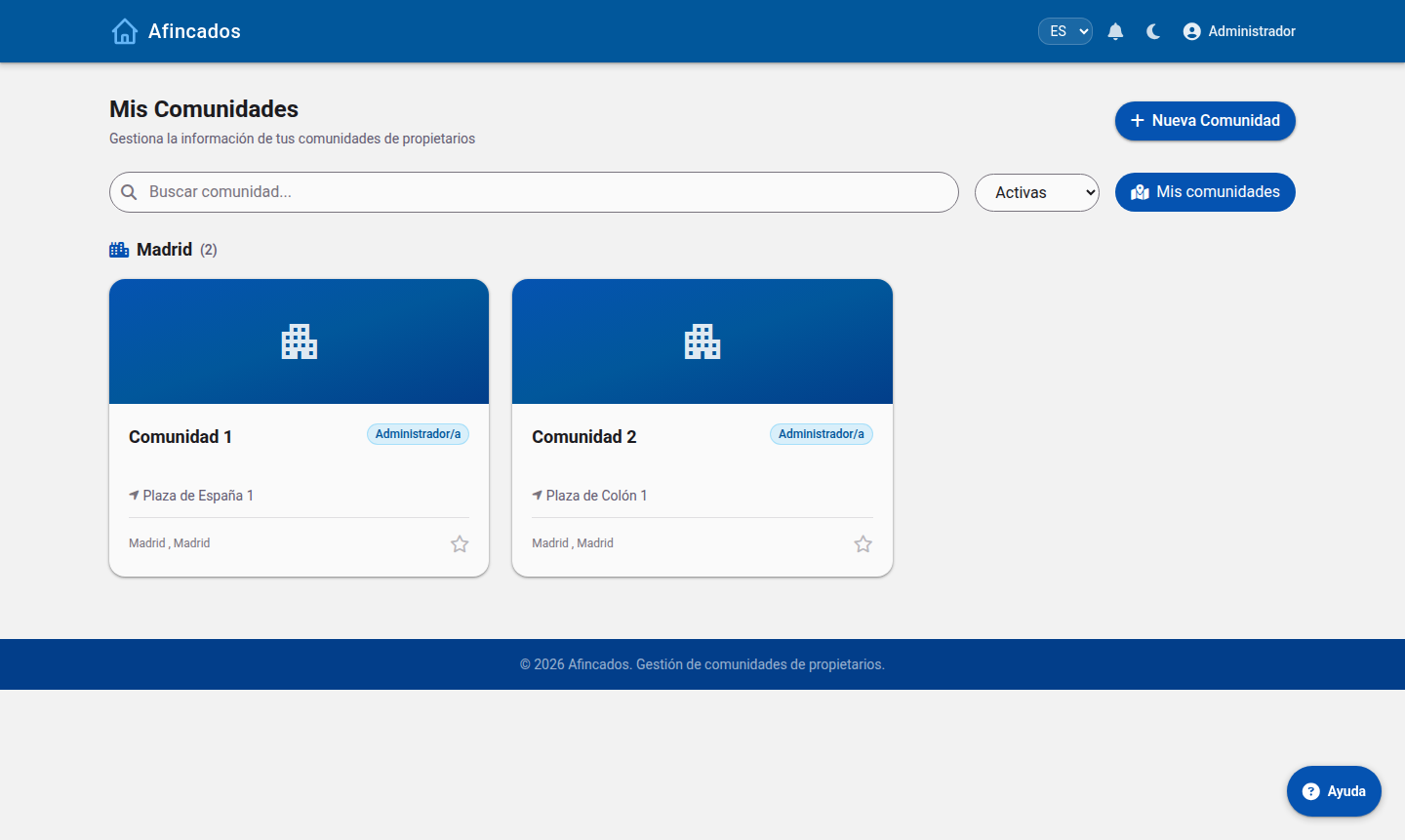
When you open a community, the app loads the menu matching your profile in it. Switch to a community where you have another role and the menu changes with you.
Why a tab is missing
- No Tax, LPH Advisor, Calendar or Inbox: those belong to the property manager only.
- I cannot create a community: only the property manager can.
- I see Finances but no buttons: residents get a read-only view.
- I only see three sections: you are signing in as a supplier's worker.
A profile is not unlocked from your own account: the manager or the board assigns it. See Assigning and changing a user's profile.
Keep reading
- What each profile sees: comparison table.
- Who sees each document and content.
- The full walkthrough of every profile in the Role guides.