Signing in and completing your profile
Sign in for the first time, check your details and finish setting up your profile.
Your property manager or the president of your community creates your user account and emails you your credentials. This article explains how to sign in for the first time and get your profile properly set up.
Signing in
- Open the application in your browser.
- Enter the email address your account was created with and the password you received.
- Click Sign in.
You can also sign in with your Google account using the corresponding button, as long as you use the same email address registered in the community.
Forgot your password?
Click Reset password on the sign-in screen, enter your email address and you will receive a link to set a new one.
Confirming your details
The first time you sign in, the application will ask you to review the details held by the community. Pay particular attention to:
- Full name: it appears on minutes, meeting notices and notifications.
- Email address: this is the channel used to send you notices and alerts.
- Phone number: used for urgent community alerts.
If anything is wrong, correct it and save. If a field cannot be edited, contact your property manager.
Completing your profile
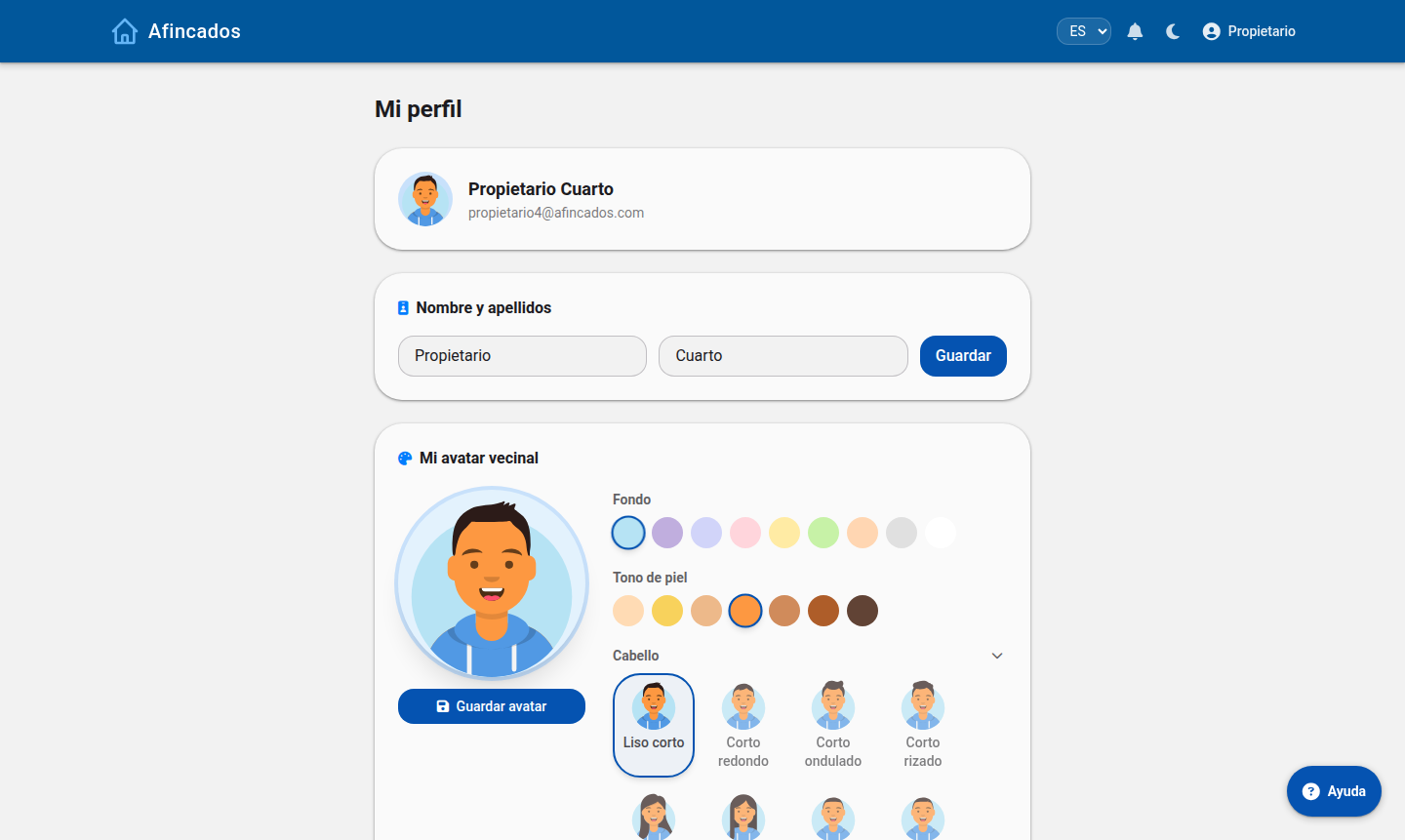
Go to My profile from the user menu in the top right corner. From there you can:
- Change your name, phone number and email address.
- Upload an avatar or profile picture.
- Change your password.
- Switch between the light and dark theme.
Security recommendations
- Change the password you received by email as soon as you sign in for the first time.
- Use a password you do not reuse on other services.
- Do not share your credentials: every resident should have their own account.