Producing, signing and publishing the minutes
Record the decisions taken, sign them digitally and distribute them to residents.
The minutes are the document recording what was agreed at the meeting. Without signed minutes, the decisions cannot be enforced. The application produces them from the agenda and the votes, and lets you sign them digitally.
Producing the minutes
- Open the meeting that has already taken place, from the Meetings tab.
- Click Generate minutes.
- Record the attendees: tick who came and who gave their proxy to another owner. The application works out the quorum by ownership share and warns you if it is not met.
- Go through the agenda items. For each one, note the discussion and the outcome of the vote: votes in favour, against and abstentions, both as a number of owners and as an ownership share.
- Write up the decisions clearly: this is the part that will be acted on afterwards.
- Save.
The minutes stay as a draft. You can edit them as many times as you need while they are unsigned, so take your time reviewing the wording.
Signing the minutes
Once the content is final, click Sign. They are signed by the president and the property manager or secretary:
- Each signatory signs in with their own account and opens the minutes.
- They click Sign and draw their signature in the box or confirm it with their digital certificate.
- The minutes are sealed with the date and the identity of each signatory.
Once signed, the minutes cannot be changed. If a mistake comes to light afterwards, do not delete them: it has to be corrected by a formal amendment or raised as an item at the next meeting.
Publishing and distributing
When signed, the minutes:
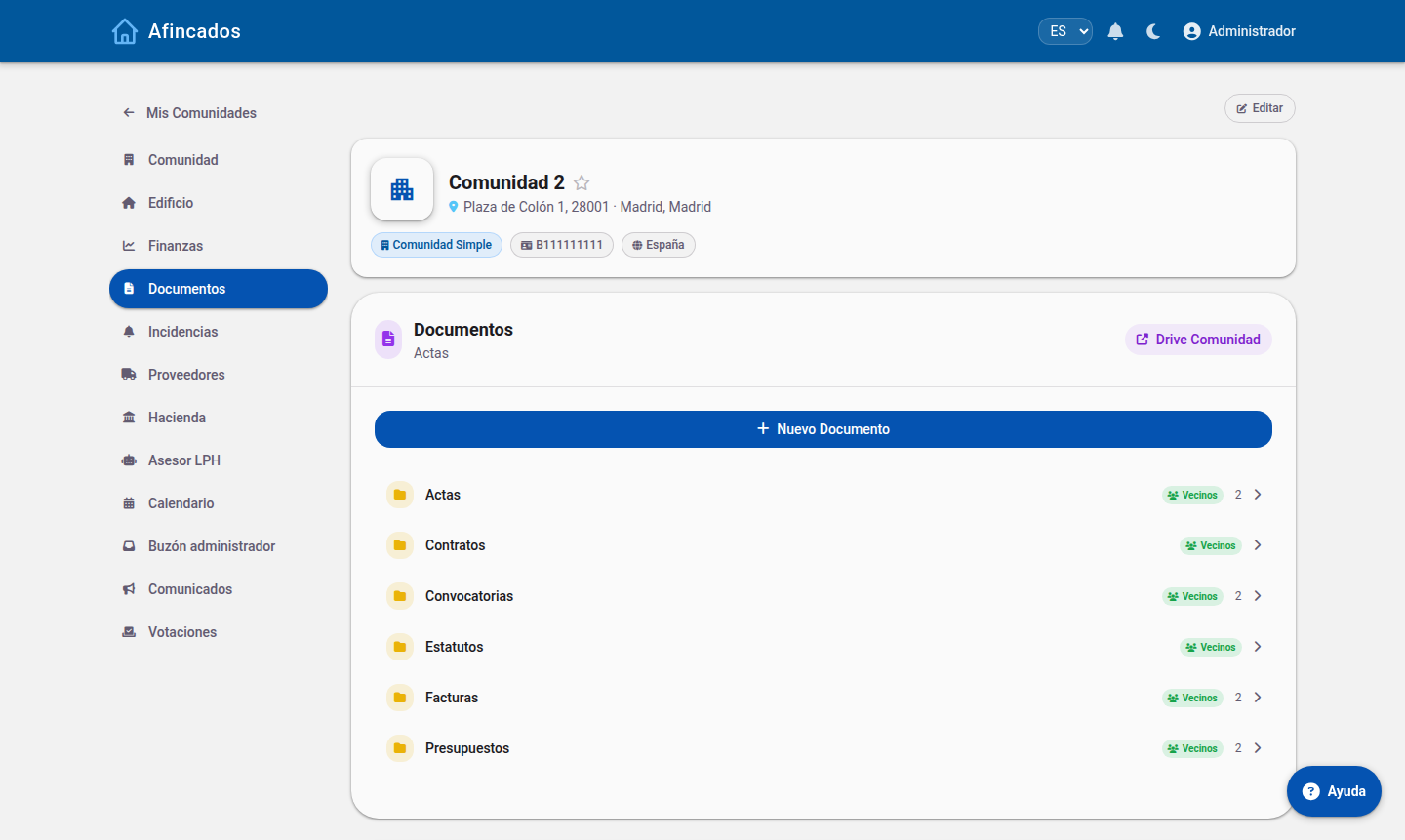
- Are published automatically on the community Documents tab.
- Are sent by email to every owner.
- Trigger a notification in the application.
Any resident can download them as a PDF whenever they like, including the minutes of meetings from previous years.
After the meeting
Decisions involving money (an approved levy, a fee increase) are not applied on their own: remember to create them on the Fees tab, referencing the minutes that back them up.