Buildings, floors and the 3D view
Define blocks and floors, and view the community in 3D to pinpoint incidents.
The buildings and floors structure is the community floor plan inside the application. It is used to group properties, split costs by division and, above all, to pinpoint incidents visually on a 3D model.
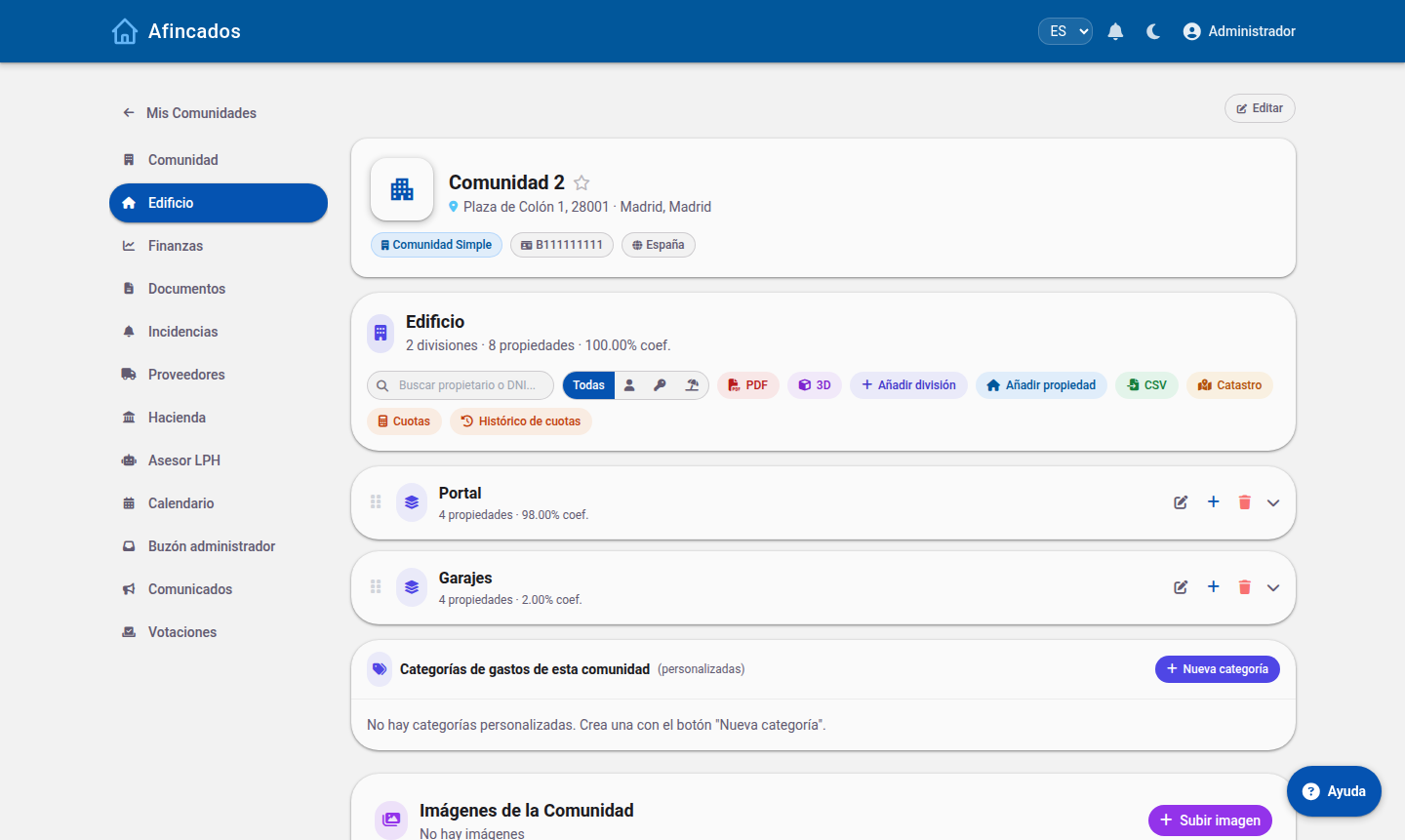
Creating a building or division
- Open the community and go to the Buildings tab.
- Click Create building.
- Give it a name (for example, "Block A" or "Building 1").
- Enter the number of floors, including basements and the ground floor where applicable.
- Save.
You can reorder buildings by dragging them, so they appear in the same order as in real life.
Floors
Within each building you define its floors and the properties on each one. If every floor is identical, create the first one and use Duplicate floor: its layout is copied and all you have to do is rename the units.
The 3D view
The View in 3D button opens an interactive model of the building. You can rotate it, zoom in and click on any unit or common area.
Its main use is working with incidents: when reporting a fault you can mark it directly on the 3D model, so the supplier knows exactly where the problem is with no need for explanations. Open incidents appear flagged on the model.
Adjusting the appearance
- Labels: show the identifier of each unit on the model.
- Settings: let you adjust floor height, colours and orientation so the model resembles the real building.
- KML: if you have a KML file with the geometry of the building or the plot, you can upload it so the representation matches the plan.
Inventory
Each division can have its own inventory of common items: boilers, lifts, fire extinguishers, irrigation pumps and so on. Recording them lets you generate QR labels to stick on the equipment. Scanning the QR code opens the public record of that item, with its history of inspections and incidents.
Exporting
The Export to PDF button produces a document with the full structure of the building and its properties, handy to attach to a meeting notice or hand to a supplier.