Annual report and AI financial analysis
Produce the year-end accounts as PDF or PowerPoint and get an automatic analysis.
The annual report brings together all the accounts for the financial year: what was budgeted, what was spent, what came in and the final result. It is the document presented to residents at the ordinary meeting to approve the accounts.
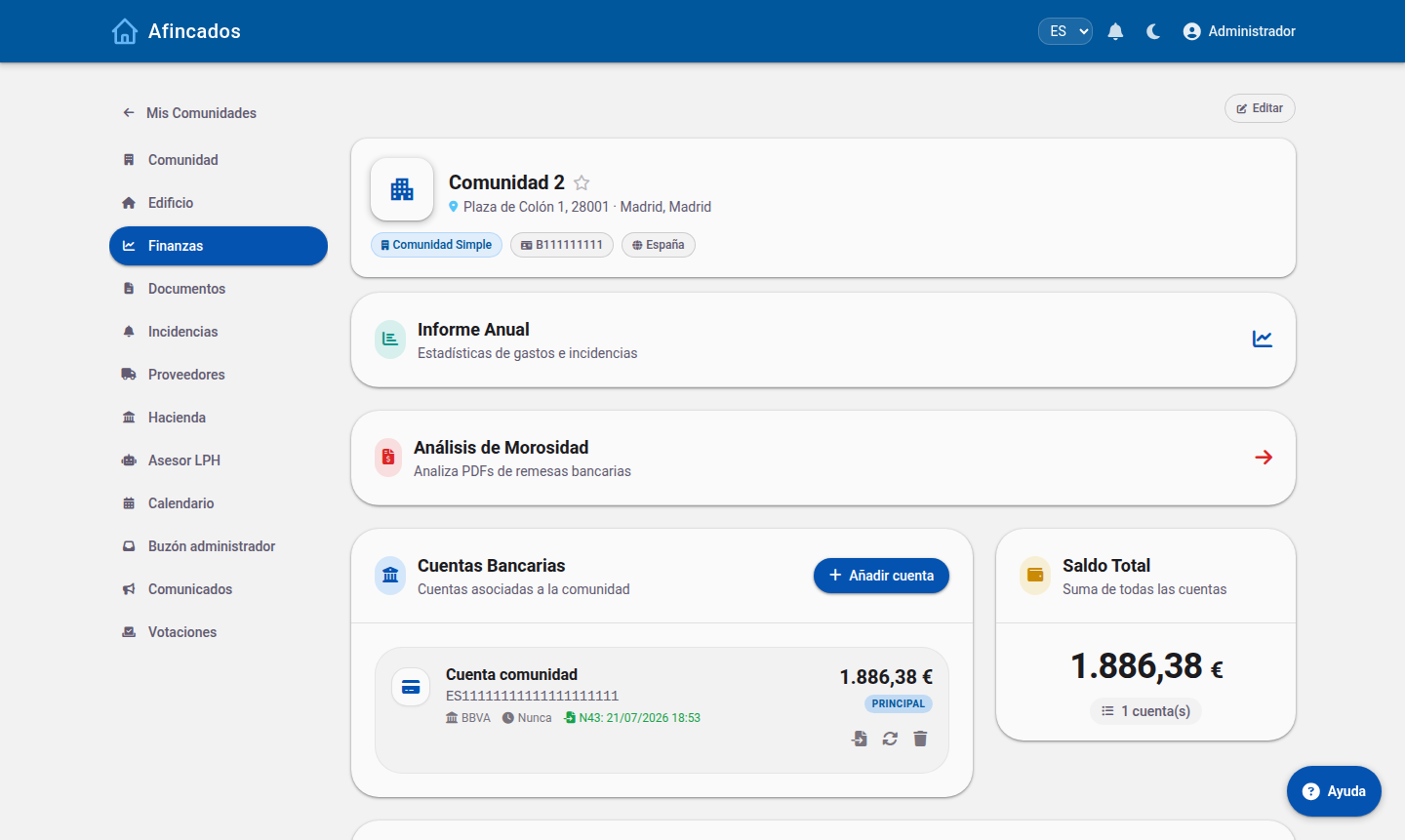
Producing the report
- Open the community and go to the Finances tab.
- Click Annual report.
- Select the financial year you want to analyse.
The screen shows the summary: expenses by category, income from fees, a comparison against the budget and the closing balance. You can break it down by division (to see what each block spent) or by owner (to see what each one contributed).
Exporting
- PDF: the formal accounts document, ready to attach to the meeting notice.
- PowerPoint: a slide deck with the headline figures and charts, meant to be projected during the meeting.
- Excel: the raw data, in case you need to work with it.
Artificial intelligence analysis
The AI analysis option reviews the year's accounts and writes a plain-language report highlighting:
- The variances against the budget and which categories they came from.
- Unusual expenses or ones that have shot up compared with previous years.
- How arrears have evolved and their impact on cash flow.
- Recommendations for next year's budget.
It is a good starting point for preparing what you will say at the meeting, though you should review its conclusions before presenting them: the AI analyses the data held in the application, so anything you have not recorded will not be taken into account.
Custom questions
With Custom query you can ask about the community accounts in plain language ("how much have we spent on plumbing over the last three years?") and download the answer as a PDF.
Who can access it
The report is available to the property manager and to board members. If you want every resident to see it, export it to PDF and upload it to the community Documents tab.